
Hey there!
We created a concept and started working on the Editor UI of TinkerFlow. Our goal for the UI is it to be simple but powerful enough for extensions and additional features. Users should be able to fastly get started with the process and app creation. In UX speaking: With as less as possible clicks from starting Godot is to create the process so that users understand the usefulness of TinkerFlow.
Here comes our deep dive with technical details:
A custom node was created just like in Unity with the PROCESS_CONFIGURATION and PROCESS_CONTROLLER gameobjects in VR Builder.
The PROCESS_CONFIGURATION contains the runtime-based scene settings and runtime configuration with the selected process, for an example.
On the other side the PROCESS_CONTROLLER contains the process runner settings (instant start, mode, etc.).
As explained in the previous post, we merged functions of both objects into one and split the whole object classes into different services. But we still need at least one node that contains the interaction between the process and the scene.
A custom Node in Godot#
Godot has a node system that contains everything in the scene, according to their documentation:
Nodes are Godot’s building blocks. They can be assigned as the child of another node, resulting in a tree arrangement. A given node can contain any number of nodes as children with the requirement that all siblings (direct children of a node) should have unique names.
So, we used the node system to introduce the TinkerFlow node.
Our idea: having a TinkerFlow node that can be placed into the scene tree and renders context-based information and settings for TinkerFlow that contains scene-specific properties and settings like the selected process, the process runner type (instant running or by a trigger) the mode of the process (XR, Desktop, 2D) and much more.
This is the first custom renderer for the node: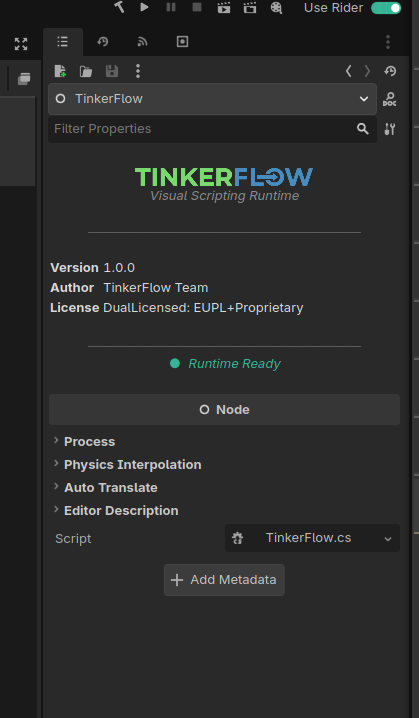
We’re still not sure what we want to display here, but it’s nice to display our logo here with additional debugging information. But speaking of custom nodes in Godot, Godot provided even more possible customisations (that are pretty awesome).
TinkerFlow Main-Screen#
There is a so called Main Screen (the green highlighted TinkerFlow text in the top middle of the picture) which is one of these potential customisable editor elements.
If this new tab is active, it shows multiple planned views that are changed by the current context.
There are currently two specific views we implemented. The current visible “Welcome screen” and the “Process Graph” if there is a process selected.
That renders the welcome screen of TinkerFlow: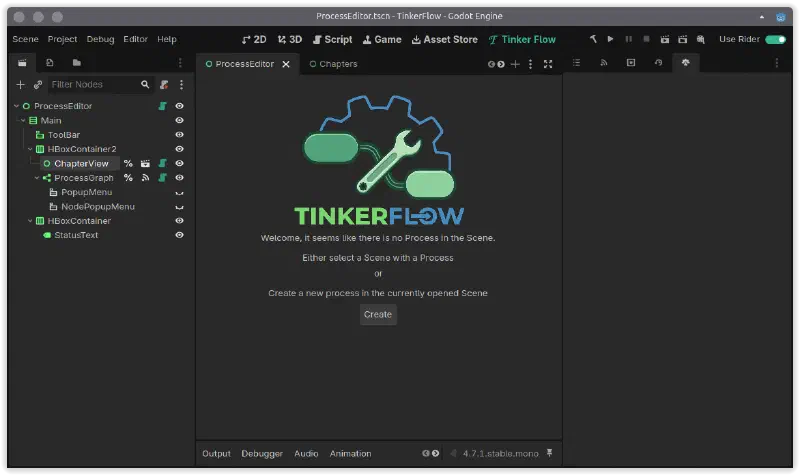
Here we want to display helpful elements, such as creating a new process, setting up the scene, getting started, where users should be able to get fast into TinkerFlow and with the app creation. There are way more ideas, but this will be explained in an upcoming post.
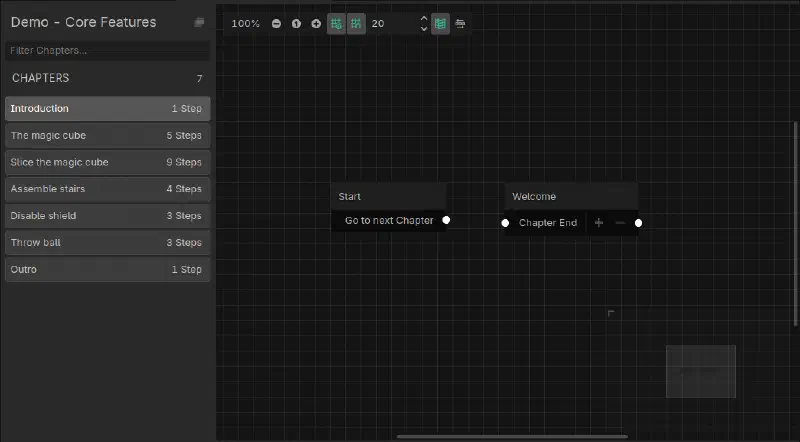
If a process is selected, the Main Screen will render a graph that loads the process and visualises the steps as nodes and connections between them.
Here we have a very basic copy of that what VR Builder does with its process editor.
On the left are the chapters with a search function. On the top are helpful buttons for changing the size, the view and layers.
Every step has a Name and (beside of the start step) a start connection and end connection.
TinkerFlow Main-Screen and Godot Settings#
This is the full view of the current TinkerFlow UI inside Godot, when a process is selected.
The only thing missing here is the step inspector.
So an editor UI to edit the process step and adding behaviors and transitions (with conditions on it).
This will be the next biggest task to solve.
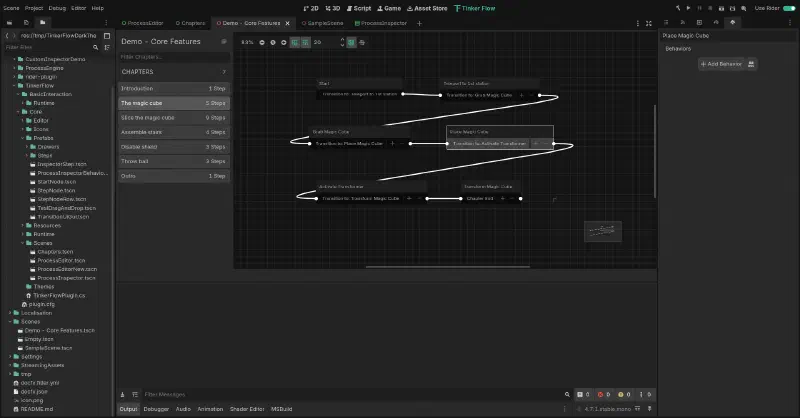
Here is a short preview of the graph editor with adding a step inside the process and a behavior to a step.
It’s not finished and also not perfect, but a good feeling that it works!
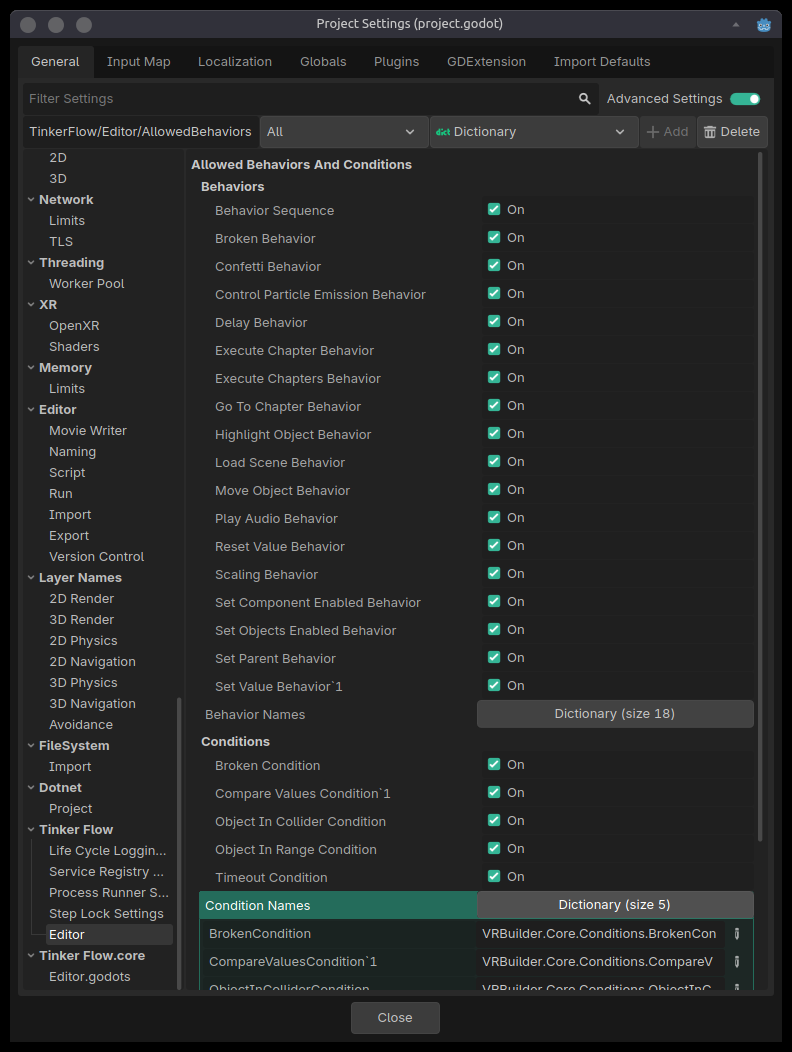
Besides of the step inspector we also want to have global project settings.
Every setting that doesn’t belong to a scene will be stored at the Tinker Flow inside the project settings.
Currently, there are some helpful settings such as debugging-logs, service registry settings, process runner properties and Editor base settings like allowed behaviors and conditions (if they are displayed or hidden).
See you next time and stay tuned!